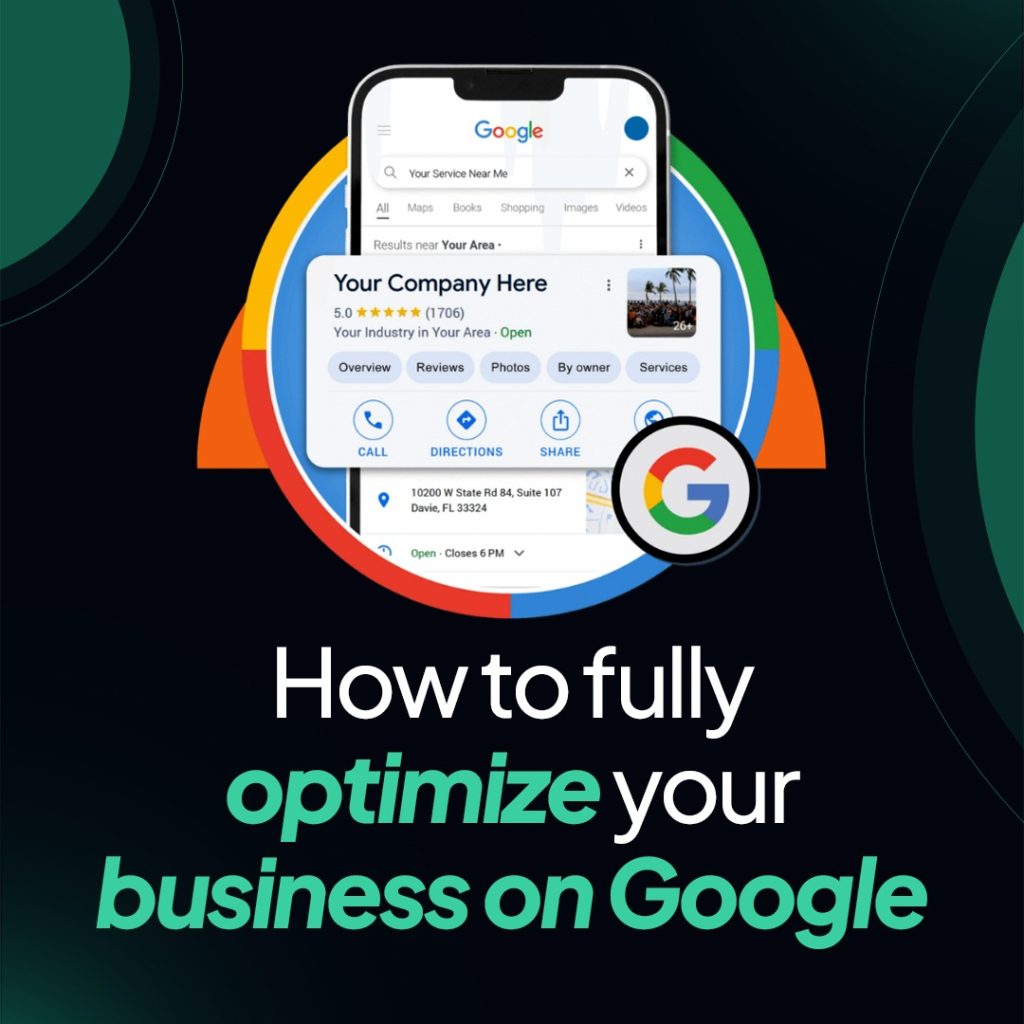
To claim your Google Business Profile, go to business.google.com, search for your business name, select your listing, and complete Google’s verification process to prove you are the rightful owner. If no listing exists yet, you can create one from scratch in the same place. Once verified, you gain full control over how your business appears on Google Search and Google Maps — which directly affects how many customers find and call you. This process is free and takes anywhere from a few minutes to a few days depending on which verification method Google offers you.
Here is exactly how the process works, what to do if someone else has already claimed your listing, and how to protect your profile from unauthorized access.
What is a Google Business Profile and Why Do You Need to Claim It?
A Google Business Profile is the listing that appears when someone searches for your business name or for a service you offer in your area. It shows your business name, phone number, address or service area, hours, photos, reviews, and a link to your website — all before a customer ever visits your website.
When you have not claimed your listing, one of two things is true: either your business does not appear on Google at all and you are invisible to local searchers, or Google has created a basic auto-generated listing using data it pulled from other sources. That auto-generated listing may have wrong information, an outdated phone number, incorrect hours, or a missing website link — and you have no way to fix any of it until you claim the profile.
Claiming your GBP puts you in control. You can correct errors, add photos, respond to reviews, update hours when they change, and actively manage how your business appears to the customers searching for you right now.
For home service businesses — plumbers, roofers, HVAC companies, electricians, landscapers — your GBP is often the first thing a potential customer sees before they decide whether to call. A claimed, accurate, well-maintained profile gets calls. An unclaimed or incorrect one loses them.
Turn Your Google Business Profile Into a 24/7 Lead Generation Machine
A fully optimized Google Business Profile helps your business rank higher in Google Maps, attract more local customers, generate more phone calls, and increase qualified leads without spending thousands on advertising.
How Do I Claim My Free Google Business Profile?
Claiming a Google Business Profile costs nothing. Google does not charge for the listing itself. Here is the process step by step.
Go to business.google.com. Sign in with the Google account you want associated with your business. If you do not have a Google account, you will need to create one first. Use an account you will have permanent access to — not a personal Gmail you might stop using.
Search for your business. Type your business name in the search field. Google will show you a list of matching listings. If your business appears, select it. If it does not appear, Google will give you the option to create a new listing.
Select your business and click “Claim this business.” If Google already has a listing for your business, you will see a claim option. Click it and follow the prompts to begin the verification process.
Complete verification. Google needs to confirm that you are genuinely connected to the business before giving you control of the listing. The verification options available depend on your business type and location. The most common methods are a phone call with an automated code, a text message with a code, a postcard mailed to your business address (this takes five to seven business days), or video verification where you record a short clip showing your business location and equipment.
Once you enter the verification code or complete the video process, your listing is claimed and active. You can then begin filling it out fully.
What Should You Do If You Run a Service Area Business?
If you go to your customers rather than having a physical shopfront — which applies to most plumbers, roofers, electricians, and landscapers — you are what Google classifies as a service area business. During setup, you can hide your home address and instead list the cities, towns, or zip codes you serve.
This is the correct setup for most home service businesses. Do not list your home address publicly if you work from home and do not have customers coming to you. Set your service area instead.
How to Claim a Business on Google That Is Already Claimed?
This is one of the most frustrating situations a business owner can end up in. You search for your business on Google, try to claim the listing, and find that someone else is already managing it. That other person could be a previous owner, a former employee who set it up, a marketing agency you no longer work with, or in some cases someone who should never have had access at all.
Here is how to handle it.
Step 1: Request Access From the Current Owner
When you try to claim a listing that is already claimed, Google gives you the option to request access from the current owner. Google sends an email to the account currently managing the listing, asking them to grant you access or transfer ownership.
The current owner has seven days to respond. If they approve the request, you gain ownership and they lose it — or they can grant you access at a specific permission level rather than full ownership.
This is the simplest path when the current owner is a former agency or a contractor who set the listing up on your behalf. Most will transfer it once you contact them directly and explain the situation, even before the Google request goes through.
Step 2: If the Current Owner Does Not Respond
If no response comes within seven days, Google gives you the option to claim the listing directly because the existing manager has not contested your request. You will need to complete verification — proving your actual connection to the business — and Google will then transfer ownership to you.
The verification methods available in this case are typically the same ones described above: phone, text, postcard, or video.
Step 3: What If the Claim Is Disputed?
If the current owner actively rejects your request, or if the situation is more complicated — a business partner dispute, a former co-owner who will not cooperate, or an unauthorized third party — you will need to file an ownership dispute with Google directly.
This requires submitting documentation that proves your legal connection to the business. Acceptable documents include your business license, a utility bill in your business name at your business address, a bank statement in your business name, or a government-issued document showing your business registration.
The review process takes time — typically one to two weeks — and the outcome depends entirely on the quality of the documentation you provide. Google’s support team reviews it and makes a determination about who the rightful owner is.
Can Someone Claim My Google Business Profile Without My Permission?
Yes, and it happens more often than most business owners know. Google’s claiming process relies on verification, but verification only confirms that someone has access to a phone number or address associated with the business — not that they are the legal owner.
The most common scenarios where unauthorized claiming happens are a former employee or agency claiming the listing and retaining access after the relationship ends, a competitor attempting to claim a listing to damage a rival business, or a third party creating a duplicate listing and trying to claim the real one.
How Do You Know If Someone Else Has Claimed Your Listing?
The most obvious sign is that you search for your business on Google Maps and cannot find it at all, or you see information that you did not put there and cannot edit. You may also notice reviews disappearing, photos being changed, or business information being altered without your knowledge.
If you try to access your Google Business Profile dashboard and find you are not listed as an owner or manager, that confirms someone else has taken control.
How Do You Get It Back?
Follow the ownership request and dispute process described above. Start by requesting access through business.google.com. If that is denied, submit an ownership dispute with supporting documentation proving your legal right to the business.
Act quickly. The longer an unauthorized person controls your listing, the more damage can be done — wrong phone numbers, incorrect hours, or a string of fake negative reviews can all cost you real customers.
How to Prove Ownership of a Google Business Profile?
When Google asks you to prove your connection to a business — either during initial claiming or an ownership dispute — the documents that carry the most weight are those that clearly show your name and your business name connected to a verifiable address.
The documents Google accepts most readily include:
Business license. A license issued by your city or state showing your business name, your name, and your business address. This is the strongest single document you can submit.
Tax documents. A tax filing or an EIN (Employer Identification Number) confirmation letter from the IRS that shows your business name matches the listing you are trying to claim.
Utility bills. A recent utility bill in your business name at the business address listed on the GBP.
Bank statements. A business bank account statement showing your business name, address, and a recent date.
State business registration. A Secretary of State filing or LLC registration document showing your business entity and your name as the registered agent or owner.
For service area businesses without a commercial address, utility bills or bank statements at your home address combined with your business license are typically sufficient.
Submit clear, legible copies and make sure the business name on the documents matches the name on the GBP listing exactly. Inconsistencies between how your name appears on documents and how it appears on the listing are the most common reason ownership disputes are delayed or denied.
Turn Your Google Business Profile Into a 24/7 Lead Generation Machine
A fully optimized Google Business Profile helps your business rank higher in Google Maps, attract more local customers, generate more phone calls, and increase qualified leads without spending thousands on advertising.
What Happens After You Claim Your Listing?
Claiming the profile is just the starting point. A claimed but empty listing will not rank well in local search — and it will not convert customers even when it does appear. Once you have full access, the next step is to complete every section of the profile accurately, choose the right business categories, upload real photos of your work, and start building a consistent flow of customer reviews.
If you are a home service business in a competitive local market, your GBP is the primary driver of inbound calls from Google. The gap between a claimed, fully optimized profile and one that is claimed but left incomplete is often the difference between appearing in the top three local results and not appearing at all.
At Influitive Media, we help home service businesses claim, recover, and fully optimize their Google Business Profiles. If your listing has been suspended, taken over by someone else, or simply not producing the calls it should, we can diagnose the problem and fix it.